
Video
🏁 Getting Started
After you receive an email from the firm, click Review and e-Sign from any device — phone, tablet, or computer — to begin!

✨ Welcome to your Tax Project!
After opening the link, you are greeted with a welcome screen letting you know that this is a tax return Project:

-
Your To-Do tasks are a checklist of items your firm needs from you before they can begin working on your Project.
-
Firm Review tasks are items you’ve already approved and that your accounting firm is now reviewing.
-
Approved shows the items your firm has reviewed and approved from the documents you’ve uploaded.

📜 Completing the Return
The top item to resolve will be the tax return!
- Click the file here to download a copy for review.
- If needed, you can snooze this task so it doesn't trigger reminders.
- You can snooze a task for 1 week up to 6 months automatically, or set a custom date up to 12 months out!

- You can snooze a task for 1 week up to 6 months automatically, or set a custom date up to 12 months out!
- You can leave a comment on the task as needed to inform the firm of any changes.
- Once you've reviewed the return and are ready to proceed, click ✔️ I Approve.
📝 Note: If your firm has enabled the feature, e-sign may not be available until you have approved the return, as shown in the example below.

✍️ Complete e-Signature
- Click View & Sign to open the signature documents and complete the signature process!
- If you would like to revisit the signatures later, click the Snooze icon to prevent reminders for one week.
- You can leave a comment on this Task for the firm. They will be notified if you have any requests or questions!

To see the full steps on completing a signature, visit our article on Completing E-Sign Requests.
🎉 Once the signature is complete, you can move on to the rest of the Tasks in the Project!
✅ Completing Tasks
💸 Payments
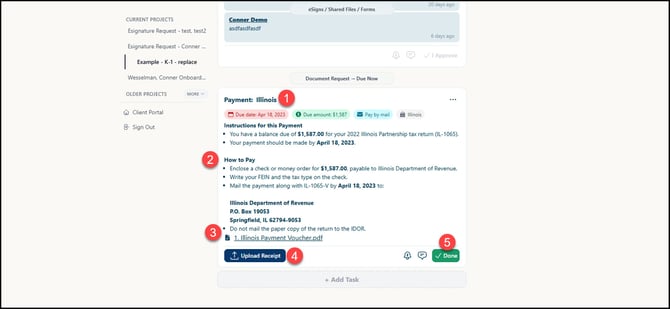
- The payment title tells you what it is for (standard voucher, estimate, invoice) and which authority it is for.
- We provide quick instructions for making the payment. If the authority has an online link, we'll provide it so you can go directly to their website to make the payment, or an address to mail the payment.
- You can download a copy of the voucher for your records, if needed!
- If you've made the payment, you can upload the receipt for record-keeping.
- Once you've made the payment, click ✔️ Done to mark it as completed in the Project!
💰 Refunds

👥 K-1 Distribution
1. Once you're ready to distribute, click Send.

2. Enter or verify the existing email for the K-1 recipient.
3. Click the Send icon to distribute the K-1!

After you click Send, our system will queue the K-1 for delivery. If you realize the K-1 email is incorrect, click Undo to revert and make adjustments. Otherwise, you can move on, and we will deliver the K-1 after the timer expires.

Items already sent will appear below under Already Sent, so you can verify which items still need to be sent.
Once you're done sending the K-1s, click ✔️Done.
🎀 Finishing Up
Once all tasks are complete, click Send for Review to notify your firm that your return is ready!

All Done! 🎉
You’ve completed your organizer, uploaded your documents, and finished your tasks. Your firm will now be able to review everything and take the next steps.