
Basic Features
A. ⚙️Settings for Active Projects.
i. 🔎 Search Tasks
ii. 📊 Manage Project Statuses
iii. 🏷️ Manage Tags
iv. 🗑️ Deleted Projects
B. Column Options. You can adjust the visible columns!
C. Saved Filters. After saving a filter, you can select it from here!
D. In Manage Project Settings, you can set the visibility of the statuses to display in Active Projects for a top-level glance at where your projects are currently at!
E. You can search by Project Name to filter the results in the search bar.
F. Set Watching on to filter the projects by only items you are set to watch.
G. Click Advanced Filters to create more sophisticated filters. You can learn more in our Filtering & Sorting Projects article.
H. Click Show Archived to filter the report for archived items.
I. Click Clear All Filters to remove any currently active sorting or filters. Click Save this Filter when you have a filter applied to save it for future use. Set the Results / Page to expand or contract the number of results that are shown.
J. Send E-Signature allows you to create a quick document to send for signature.
K. Share Files allows you to quickly generate a link to send files to an email contact.
L. Send Returns will open the Assembly Uploads page so you can begin uploading returns.
M. New Project opens a menu to quickly create a Project for a Contact/Entity, or invitations for new 1040, Business, or Trust/Estate clients.
N. View, sort, and filter the report via the listed columns. For more on sorting and filtering, visit our Filtering and Sorting Projects article.

Editing Projects
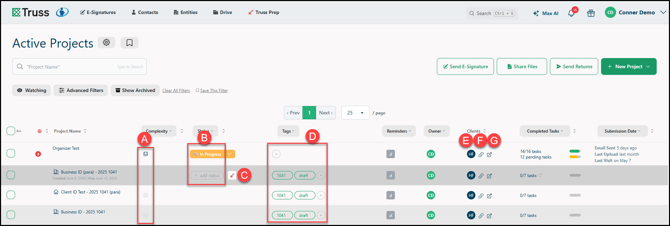
You can take a few actions on the main dashboard to edit Projects.
A. You can view or add notes to the Project.
B. You can add or edit the current Status of the Project.
C. When ready, you can send a return Project to Truss Prep.
D. You can add or remove the Tags associated with the Project.
E. You can open the Client Info of the main recipient to review or edit as needed.
F. Click to copy the Magic Link to either send to the client or open in a browser.
G. Click to open the Project in the client view in a new tab.
Actions
Note: the Actions menu will only appear when you have at least one Project selected via the checkbox on the left.
A. Use Change Project Tags to add or remove tags from the selected Projects.
B. Change Project Owner reassigns ownership across your selected Projects in one step.
C. Apply Change Project Status to update the status of one or more selected Projects at once.
D. With Add Project Watcher, you can subscribe to all changes, comments only, or daily digest updates.
E. Schedule Message lets you compose a message now and deliver it to selected Projects at a future date.
F. To bulk add the same task across multiple Projects at once, choose Add Task to Each Project.
G. Set Project Due Date updates the due date for every Project in your current selection.
H. Adjust how often reminders go out by choosing Set Reminder Schedule.
I. Move selected Projects out of your active view by choosing Archive Projects. You can see a more detailed guide in How to Archive Projects. To see the archive page, visit our Archive Projects Page article.
J. Export to Excel generates a downloadable spreadsheet report of your selected Projects.
K. Use Download New to .zip to package and download all new items from the selected Projects at once.
L. Add From Last Year's Projects copies items from prior year Projects directly into your current selection.
M. To kick off a new Project using prior year data as a starting point, select Roll Over Projects.

📊 Column Options
You can activate, deactivate, and move the visible columns of the report! Click on Columns to open the feature.
- You can click and drag the columns to reorder them (top to bottom equals left to right on the report).
- You can toggle columns on or off by clicking the checkbox here!
