Accessing the Client Contact
-
Click on Contacts in the top menu bar.
-
Click on the contact's name to open the record.

Contact Dashboard

1.) Contact Info
All current information for the Contact will be stored here on the left-hand side of the page.
2.) Contact Notes
Internal notes that the firm can add to a client record. These are not visible to the client.
3.) Linked Entities
All Entities tied to the Contact are listed here. You can click Link+ to open a search bar and manually add Entities.
4.) Linked Projects
All Projects tied to the Contact are listed here. Adding a Contact to a new Project will update the list.
5.) Copy Client Portal Link
Click this button to copy the Client Portal URL to your clipboard.
6.) Invalidate All Links
This option will immediately invalidate all currently active links sent to the Contact's email address. You can use this when the email address is incorrect or when the client suspects third-party access to their email, helping ensure security while they recover their accounts.
7.) Delete Contact
This will fully remove the contact from our program.
8.) Merge this Contact
This option allows for duplicate Contact records to be merged. Clicking it opens a dialog where you can search by Name or Email Address. After selecting the record, a merge page will appear asking to confirm which data to set as primary.

9.) Edit this Contact
Clicking this will open a new window to edit the current Contact. From here, you can edit Name, Emails, Phone numbers, and Addresses. You can also mark the record as a Spouse for Married Filing Joint (MFJ) Entities. You can also mark "Ignore Duplicate Warnings" if you need to create multiple contact records for a client.
By clicking on Show Additional Fields, you can also add the following data:
-
SSN/ITIN
-
Date of Birth (DOB)
-
Middle Name
-
Nickname
-
Entity/Company
-
Job Title
-
Filing Status
-
Client ID Number
-
Notes
You can also edit the record to "Always Require OTP" or "Disallow Email for One-Time Passcodes" per client or firm preference!

10.) Data Tabs
These tabs provide sectioned data for the client. You can locate the Projects the contact is connected to, the Files they have uploaded, all Activities they have taken, and any Integrations connected to their record.
Projects Tab
- Check "Include archived projects" to include Archived items in the report list.
- You can navigate between page numbers or click Prev or Next to navigate the list.
- The "Active?" column indicates whether a listed Project is active.
- Project Name displays the Project name, when it was created, and when it is marked as Due.
- View any notes on the Project by hovering over the icon.
- Displays the status of the item with regard to Truss Prep.
- Any tags attached to the Project are displayed here.
- The current reminder schedule.
- The owner of the project.
- Client information. You can see any additional clients attached to the Project, copy the project link, or open the Project directly in a new tab!
- A quick overview of the completion of tasks in the Project.
- Information regarding the last events on the Project.

Files Tab
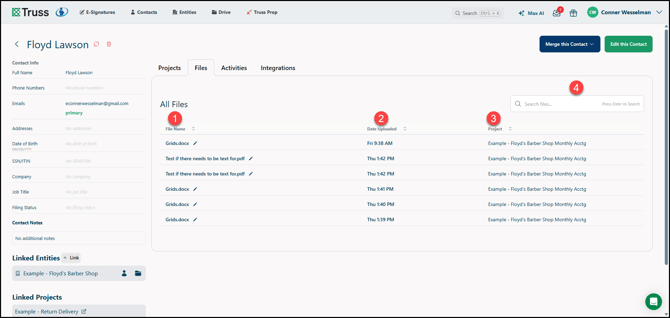
- File Name is listed here, with the option to click the arrows next to the column to sort alphabetically, either ascending or descending.
- Date Uploaded displays the upload date and time. You can hover over an entry for more detailed information (i.e., Apr 30, 2026, 1:42 MDT).
- The Project that the file is attached to is displayed for easy reference.
- You can use the Search to locate specific files by File Name.
Activities Tab
- You can sort Contact activities by All, Emails, Activity, Comments, or Reminders.
- The search bar can filter Activities by names and keywords.
- The navigation arrows will move you through pages of records.
- If an Activity includes an email, you can click the arrow to expand it to view the full message.

Integrations Tab
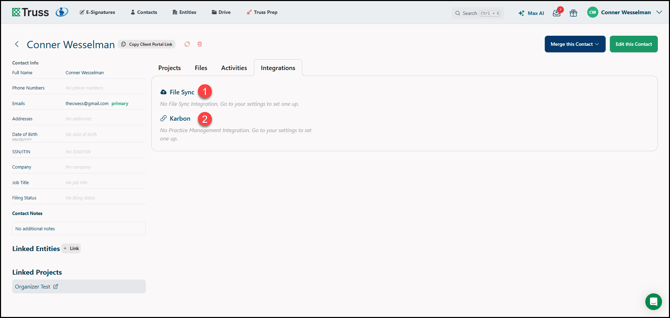
- If a File Sync has been set up in your integrations and connected to the Contact, it will appear here.
- If the Contact has been connected to a Karbon record, the connection is listed here.