
Are you using Encryption for Crosslink?
If your Crosslink client files are using an Encryption Key, you'll need to remove it before making a .zip.
Don't worry—you can add it back afterward!
Here's how to remove the Encryption Key:
-
Go to Crosslink's Utility menu -> System Utilities.
-
Click Reset Encryption Key
-
Click Run Utility
-
When you see "Reset Encryption Key":
-
Leave the New Encryption Key field empty
-
Enter your Admin Login Password
-
Enter your New User Login Password
-
Press OK
-
-
Wait a couple of minutes for the removal to happen. You'll know it's complete when the Reset Encryption Key screen closes.
-
Close the Crosslink program and continue with the instructions in Converting Client Files.
Converting Client Files
-
Your Crosslink files will be located at C:\xlink24\ by default. Navigate to this folder in Windows File Explorer.
-
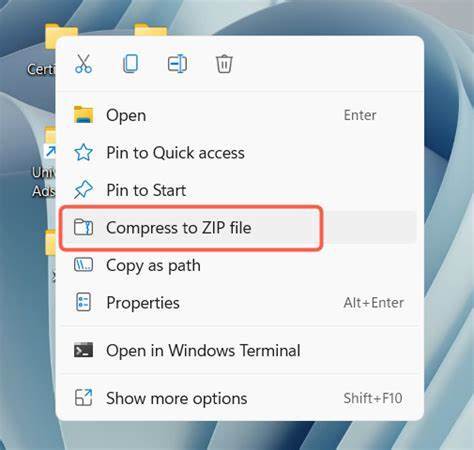
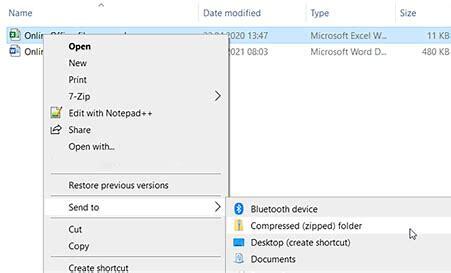
Select all files and click "Compress to..." -> ZIP File (see Screenshots below)
-
Upload the ZIP file to Truss on the Upload your Organizers page!
How to ZIP your files
-
Right-click the file.
-
Select 'Compress to ZIP file' - Windows 11
If you do not see the above options, try this:
- Right-click the file.
- Hover over Send to, then select Compressed (zipped) folder.
Upload your ZIP to Truss!
Navigate to the Organizer Uploads page and upload your backup file to Truss!
⏸️ If your backup file exceeds 6 GB, please contact Support.