Sort and Filter the Project Report
-
You can type in the name or partial name of a Project to filter the results.
-
Sort results by the # of Action Items.
-
Sort results by Project name. Client ID is visible in the column.
-
Filter results by Complexity, from Level 0 to Level 3.
-
Filter results by Status, including custom options.
-
Filter results by Tags. You can select multiple tags to filter by.
-
Filter results by Reminder period.
-
Filter results by Owner.
- Filter results by Watchers.
-
Sort results by Clients.
-
Sort and filter results by Completed or Pending tasks.
-
Sort and filter results by Last Upload, Submission Date, or Due Date.
-
Create an Advanced Filter.

Using Advanced Filters
1. Set the filter to include all below conditions (AND) or any below conditions (OR).

2. Select the field that you are filtering for.

3. Select the Criteria for the filter. The currently available options are:
-
-
Equals | Does Not Equal
-
Contains | Does Not Contain
-
Starts With | Does Not Start With
-
Ends With | Does Not End With
-
4. Enter the value of the filter. For items like Tags that have existing fields, a drop-down will appear to select them when you type.
5. Click the 🗑️icon to Delete the filter Condition.
6. Click + Add Condition to add an additional filter condition.
7. When finished, click Apply Filter to complete it.

Filter Actions
📘 Tip: If a filter is already active, it will display in bold green as "Advanced Filter ON". 
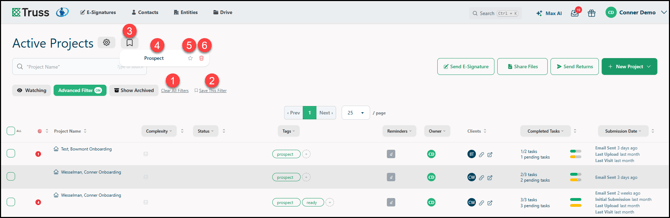
1. If you have a currently set filter or sort, click Clear All Filters to clear them.
2. If you have a currently set filter or sort, click Save This Filter to save it. A dialogue will appear to name the filter.
3. If you have a saved filter, click the Saved Filters icon to open the list of your currently saved filters.
4. Click the name of the filter to apply it.
5. Click the star icon to set the filter as a default filter on page load.
6. Click the Delete icon to remove the filter from your saved list.