
📝 Note: For a detailed list of events, visit our Activity History Event List article.
📜 Locate and Open the Activity Log
To locate the Activity Log, first open a Project. Once the Project is opened:
- Click the ⚙️ Settings gear next to the Project name.
- Click on Activity Log to open it!

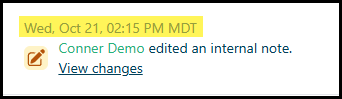
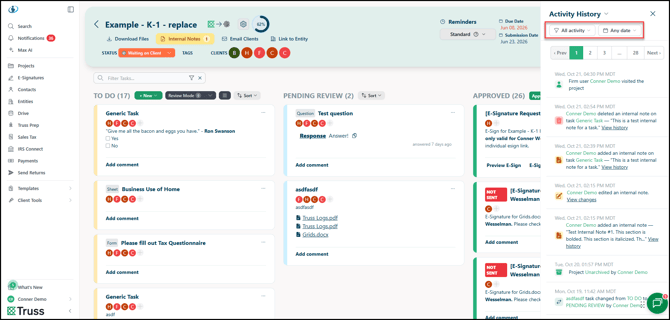
A sidebar will appear on the right labeled Activity History, and you will be able to see all major actions taken inside the Project, both from the client and the firm! Each record includes the date and time, the action taken, and who took it.
🗃️ Filtering Events
You can also filter the results to drill down to the data you need!
🏃➡️ Filter by Activity
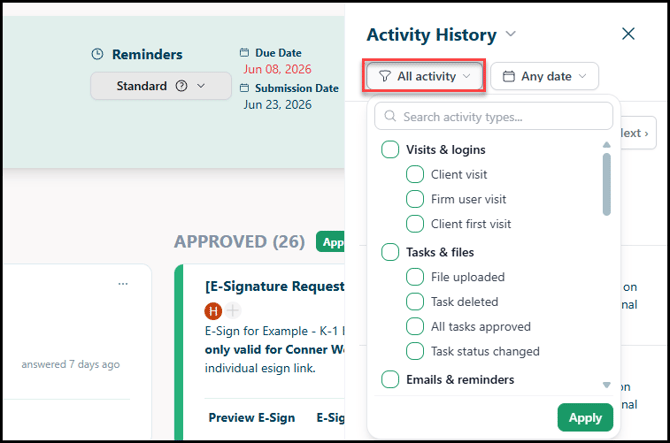
You can drill down the event log to locate the items that matter to you. Click on the leftmost dropdown (by default, this is All activity) to modify your view. You can filter by the following:
-
Visits & logins
-
Client visit
-
Firm user visit
-
Client first visit
-
-
Tasks & files
-
File uploaded
-
Task deleted
-
All tasks approved
-
Task status changed
-
-
Emails & reminders
-
Payment reminder sent
-
Email opened
-
Reminder email sent
-
Reminder schedule changed
-
Reminder text sent
-
-
E-signatures
-
E-signature completed
-
E-signature expired
-
E-signature signed
-
E-signature viewed
-
E-signature reminder sent
-
Sign request created
-
Sign request signed
-
Sign request visited by client
-
Sign request visited by firm user
-
-
Project changes
-
Archived / unarchived
-
Owner changed
-
Status changed
-
Watcher added
-
Watcher removed
-
-
Internal notes
-
Note added
-
Note deleted
-
Note edited
-
For an explanation on these events, visit our Activity History Event List article!
📅 Filter by Date

If you select the rightmost drop-down (by default Any date) you can set a From and a To date range to limit your search!