👀 Finding and Editing Your Templates
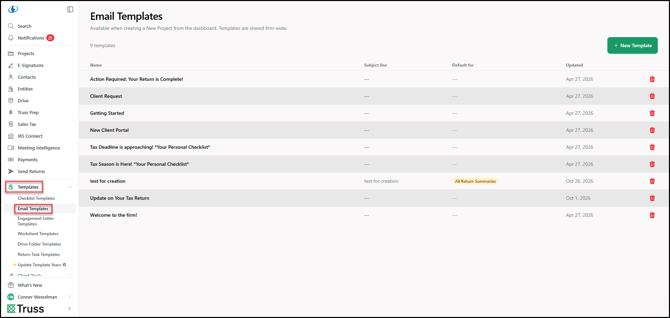
Navigate to Templates > Email Templates in the main menu. Your existing templates are listed here, and you can create new ones from this page as well.
When editing a template, one thing to keep in mind: do not include your email signature. Your signature is added automatically whenever you compose an email in Truss, so adding it to the template would cause it to appear twice.
Using Merge Tags
Merge tags let you automatically pull in client-specific data so your emails feel personalized without any extra effort. Available merge tags include:
- [first_name] – The client’s first name
- [last_name] – The client’s last name
- [email] – The client’s email address
- [entity] – The client’s business or entity name.
- [link] - Adds a clickable link to the email to access a relevent sent item.
- [link: customized button text]– Lets you customize the label on the call-to-action button in the email. For example, you could make it say “Your Checklist” or “Upload Your Documents.”
[link: Upload Your Documents]
- [link: customized button text](https://my-external-url.com) - Adds a button that links to an external URL.
[link: Visit Our Website](https://gettruss.io)
- [update_summary] – Inserts a bullet-point summary of everything new in the client’s project since they last visited. This includes any comments you’ve left, files you’ve shared, and new tasks added to their checklist. Ideal for follow-up emails after reviewing uploaded documents, prompting clients to return and complete remaining items.
- [task_list] - Inserts a list of existing tasks in To Do for quick review.
Creating a Template On the Fly
You don’t have to build templates in advance. When composing an email to a client in Truss:
- Type your email as normal.
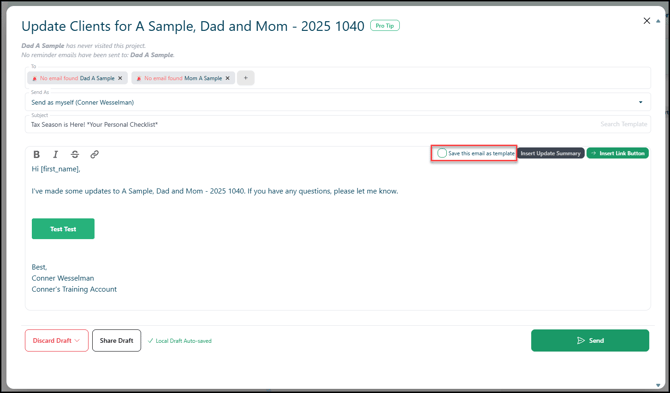
- Check the Save as template box before sending.
- Give the template a name.
- Send — the template will be saved automatically for future use!
Applying a Template to an Email
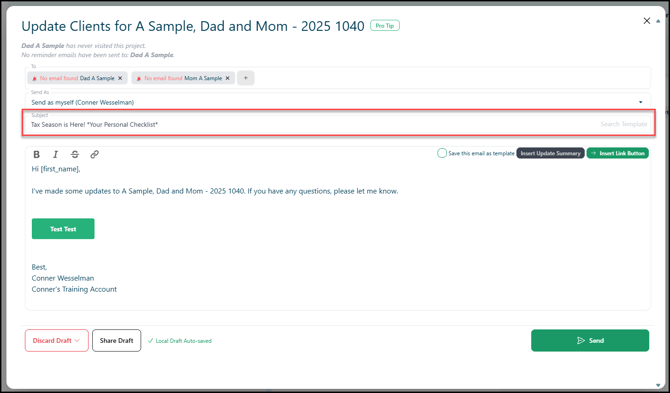
When composing any email in Truss, click into the subject line field to pull up your saved templates. Select the one you want and it will populate the email immediately.