
⏰ Requirements
- An active Stripe integration on your Truss account
- A Stripe Terminal card reader
- The reader connected to Wi-Fi
📝 Note: This option will need to be turned on for your account before use. Reach out to us to enable the feature!
📲 Compatible Hardware:
Stripe Reader S700
Stripe Reader S710
🛠️ Setting Up Your Card Reader in Truss
1. Click your Profile menu to open it up.
2. Click Manage Payments.

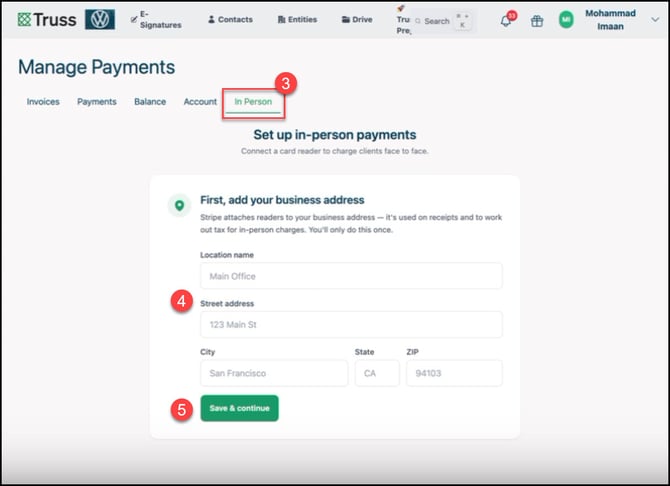
3. Click on the In Person tab.
4. Fill out your business address.
5. Click Save and Continue once finished!
6. If you need to edit the address for the terminal, do so here.
7. Enter the Registration code for the Stripe terminal. To find it, follow the guide in Stripe's documentation to Register readers.
8. Give the reader a distinct (or cool!) name for tracking.
9. Once all above steps are completed, click Register reader to complete the process!


Once saved, the reader will update itself and begin working automatically. When the reader displays its ready screen, setup is complete!
💳 Taking a Payment
To connect a payment to the reader, we have to first open an existing Project with an invoice task.
1. Click the [...] menu on the invoice.
2. Click Send to terminal to begin the connection.

3. Verify the invoice information.
4. Click on an available reader to send the invoice to that reader.

5. On the terminal, click Pay to prepare to accept the payment. The client will then need to tap, use the chip, or swipe on the terminal with their card to complete the payment.

Once the payment runs through the terminal, you will see a confirmation in Truss! The invoice will then be marked as Paid.

⭕ Managing and Canceling Transactions
If a payment needs to be canceled before it's completed, you can cancel it directly from Truss. If your firm has multiple readers, you can select which reader to send a payment to and manage or cancel pending transactions from the same interface. Cancellations are reflected immediately.
