📖 Project-wide Notes
We now support multiple internal Project notes for your firm! You can create, edit, review for historical changes, and delete them as needed.
To access them, open a Project and then click on Internal Notes.
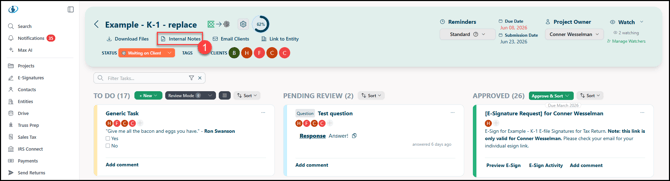
Main Window
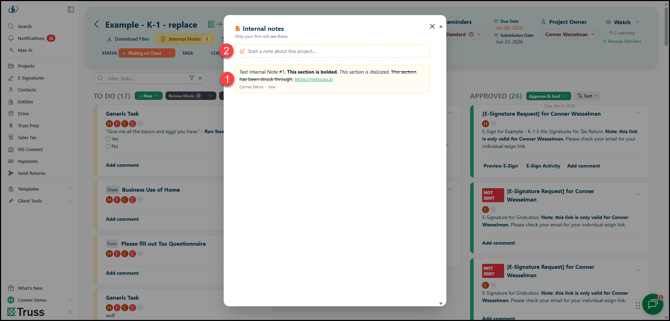
Once you've opened the Internal Notes, there are a few options:
- You can click on an existing note to edit it (more on this below).
- You can click here to open a field to create a note!
Creating/Editing Notes
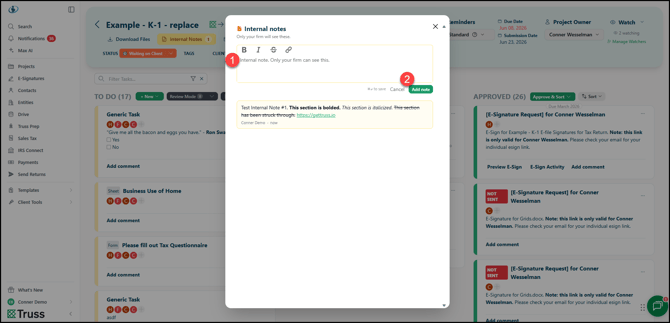
- You can enter your note here. We support basic text markdown (bold, italics, strikethrough, and links).
- Once the Internal Note is complete, click Add note to finalize it, or click Cancel to halt the process.
Notes Settings
On the Internal Notes list, you can modify existing notes!
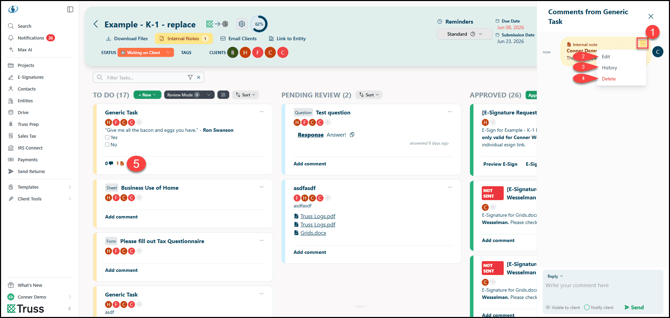
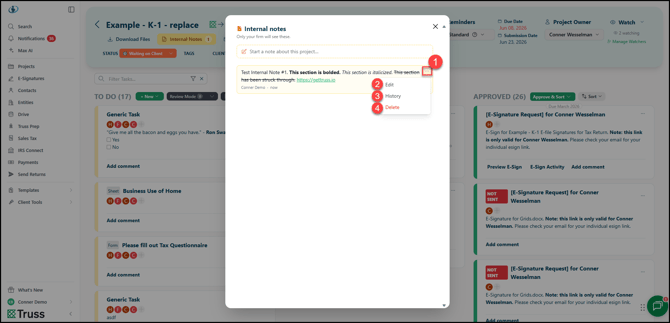
- Hover over the note and click the [ . . . ] drop-down menu.
- Click Edit to make an adjustment to an existing note. The options to edit are displayed in the previous section.
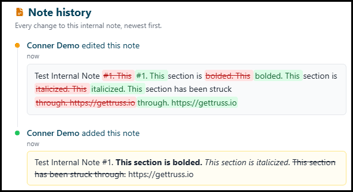
- Click History to open a report of when the note was created and all changes made:
- Click Delete to remove the existing note.
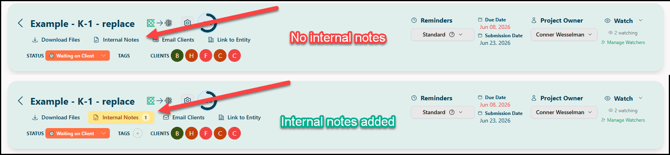
Once any note is added, the Internal Notes section becomes bolded and yellow for visibility.
📒 Task Notes
Task Notes are a great way to add specificity to individual Tasks that would otherwise clutter the Project's Internal Notes.
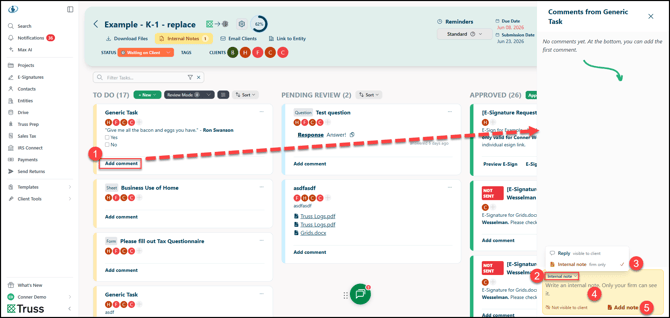
- Click Add comment under any Task you wish to add an internal note to.
- At the top-left of the comment field, click the drop-down.
- Choose Internal note.
- This displays a yellow field confirming that this will be an internal-only note. Enter your text here.
- Once you are finished, click Add note to add it to the Task!
Notes Settings
- Hover over the note and click the [ . . . ] drop-down menu.
- Click Edit to make an adjustment to an existing note. The options to edit are displayed in the previous section.
- Click History to open a report of when the note was created and all changes made:
- Click Delete to remove the existing note.