
Your Lacerte data files will be located in your Lacerte/25tax directory.
📝 Note: The contents of your 25tax folder should contain subfolders named Idata, Sdata, Tdata, etc. If those folders are not present in the 25tax directory you are reviewing, you will be creating a backup from the wrong location.
If your firm has a shared server, you will need to get the 25tax folder from that drive/location. Navigate to that folder in Windows File Explorer.
Below is an example of the contents of 25tax:

-
Right-click the 25tax folder -> "Compress to..." -> ZIP File (see Screenshots below).
-
Upload the zip file to Truss!
Right Click + Compress to Zip - Windows 11

Right Click + Compress to Zip - legacy Windows
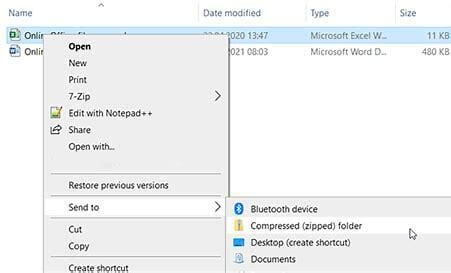
Truss has a maximum file size of 6.0 gigabytes for uploading backups to the product. If you find yourself in the situation that your zip file is above the maximum, you likely need to check your folder for unneeded automated backups.
Instructions:
-
COPY your 25tax folder to your local desktop
-
Navigate to your local copy 25tax\IDATA\Backup
-
If the Backup folder exists, you can delete all zip files in this folder from your local copy
-
Zip your folder again and check the size (right click / properties) and see if this gets you below the 7 gig limit.

If this doesn't solve the size constraint, please reach out to support via chat and we will help you.
Upload the ZIP files to Truss!
Navigate to the Organizer Uploads page and upload your backup file to Truss!
⏸️ If your backup file exceeds 6 GB, please contact Support.