
🎥 Video
Scheduling the Message
1. Go to the Active Projects dashboard or your Contacts.

2. Select the Clients you wish to send communications to.

3. Navigate to Actions and click Schedule Message.
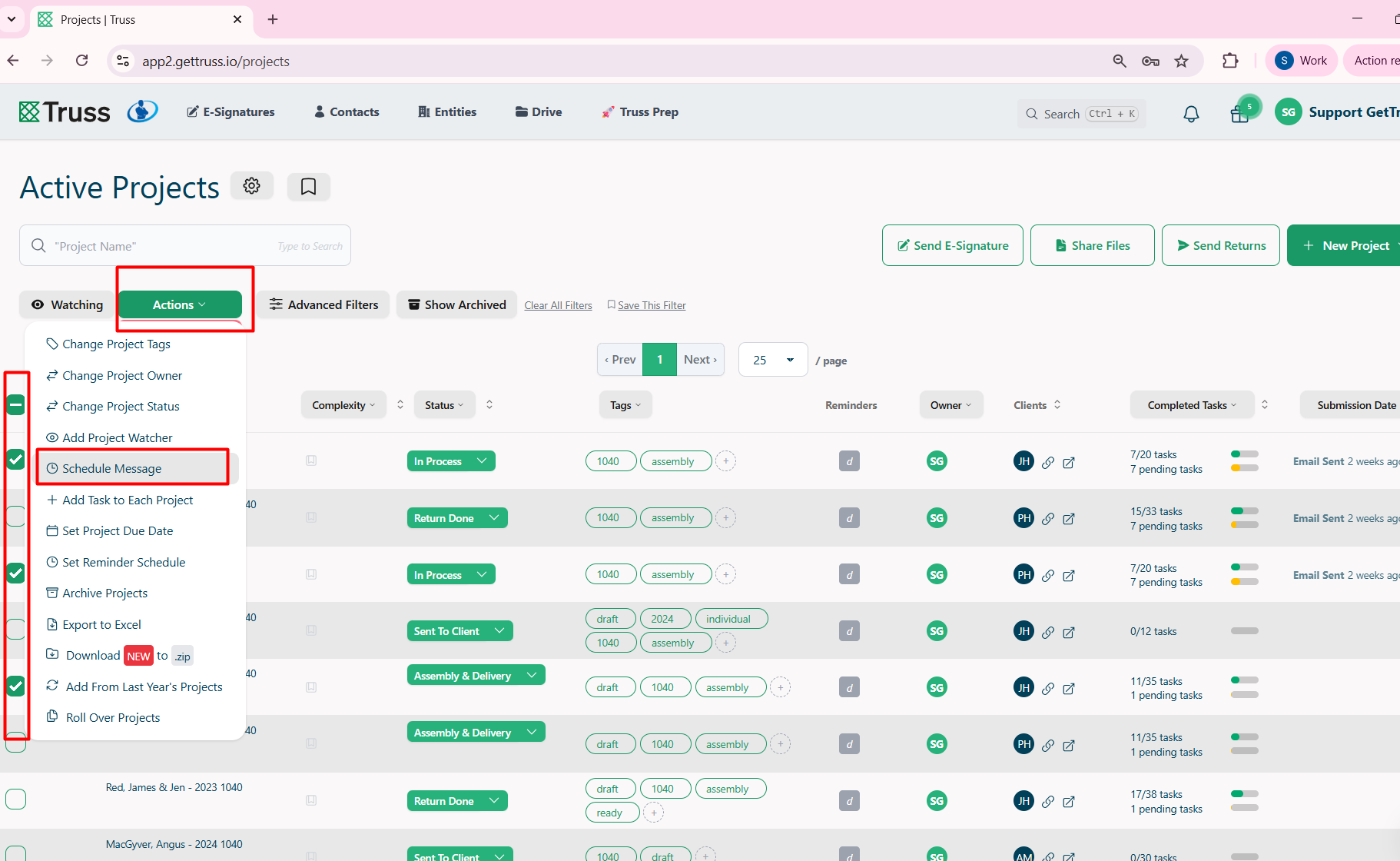
4. Set the delivery settings of the message. You can choose the Date and time (in 15 minute increments) for the delivery, as well as options to skip weekends.
📝 Note: For Project messages, you have the option to consolidate emails so a contact doesn't receive excess notifications for each project they're assigned to!
If a user has authorized you to 'Send As' themselves, you can update the name here. For more on that, visit our My Settings article.

5. Send / Schedule

