Note: For splitting a document using cover page uploads, visit our PDF Cover Pages article.
Splitting a PDF Document
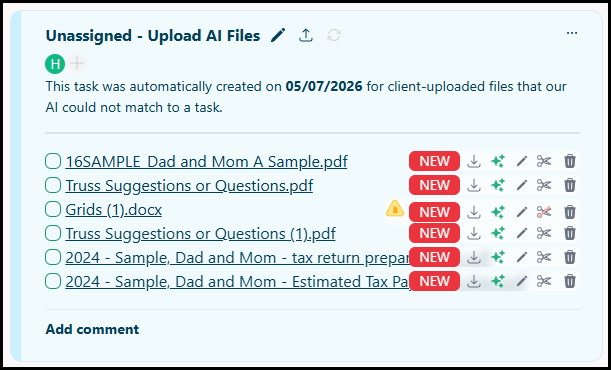
At this time, the feature only works with PDF files. If a file cannot be split, a red line will show over the scissor icon, and hovering over it will display the text "Can't split - not a PDF".
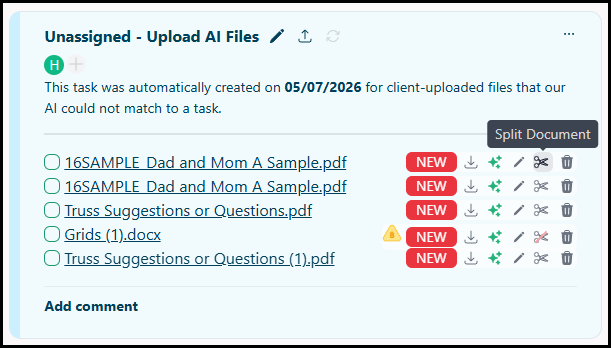
1. While inside a Project, locate a Task with uploaded files. Hover over the document, then click Split Document.
2. The utility will run and add automatic separations as we detect them. You can then scroll through the document and add or remove separators by hovering in the space between pages and clicking the options.
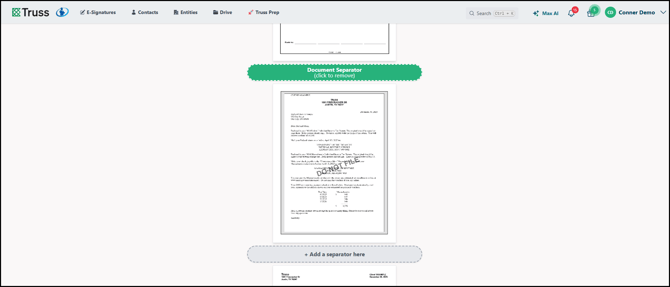
Once you reach the bottom of the document, click Split to finalize and we will split the documents into multiple parts. You can see a visual of this process while we work!
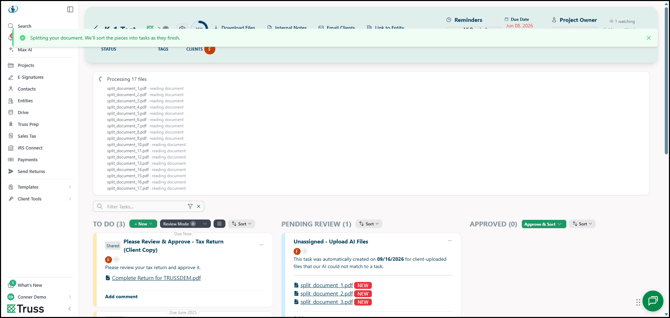
Once the utility is complete, we will rename the file. The prefix is determined by tax year and name, followed by the detected split. The renaming may take additional time depending on the number of splits.
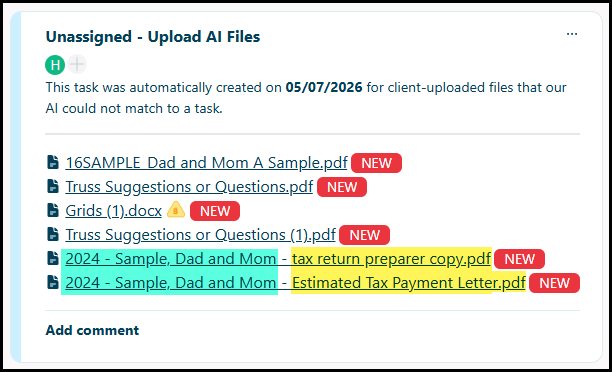
You can still take actions on the split documents as if they were uploaded documents.
- Download the document(s).
- Use Magic to have AI rewrite the file name.
- Edit the file name manually.
- Split the document again.
- Delete the specific document.