
Overview
Truss Prep integrates with GruntWorx to:
-
Download a Lacerte pro forma
-
Send documents for OCR and data extraction
-
Return an Excel file that populates data directly into Lacerte
This workflow reduces manual data entry while maintaining reviewer control.
Account Setup Requirements
Firm Requirements
-
The same tax software must be selected in Truss Org Settings and used for prep
-
GruntWorx Agent installed on at least one Windows machine with:
-
Lacerte installed
-
Microsoft Excel installed
-
-
GruntWorx works with one tax prep software at a time
-
If your firm uses multiple prep platforms, you must uninstall and reinstall the agent when switching
-
Entity Requirements (Critical)
Each Truss entity must have:
-
A Client ID that exactly matches the Lacerte Client Number
-
Case-sensitive matching if letters are used
-
A linked taxpayer with name and SSN matching Lacerte
⚠️ If the entity is not linked correctly:
-
Download Pro Forma will fail
-
An alert will appear in Truss
High Level Workflow
-
Link Truss project to the correct entity (with Lacerte Client ID)
-
Download the Lacerte Pro Forma from Truss
-
Send Pro Forma + documents to Truss Prep (OCR)
-
GruntWorx processes the files and returns an Excel output
-
Download and unblock the Excel file
-
Run Populate to push data into Lacerte
-
Validate populated data in Lacerte
Step-by-Step Instructions
Step 1: Prepare the Truss Project
-
Open the project in Truss
-
Confirm it is linked to an entity with:
-
Client ID matching what appears in Lacerte
-
This is case sensitive
-
-
Matching taxpayer identifiers
-

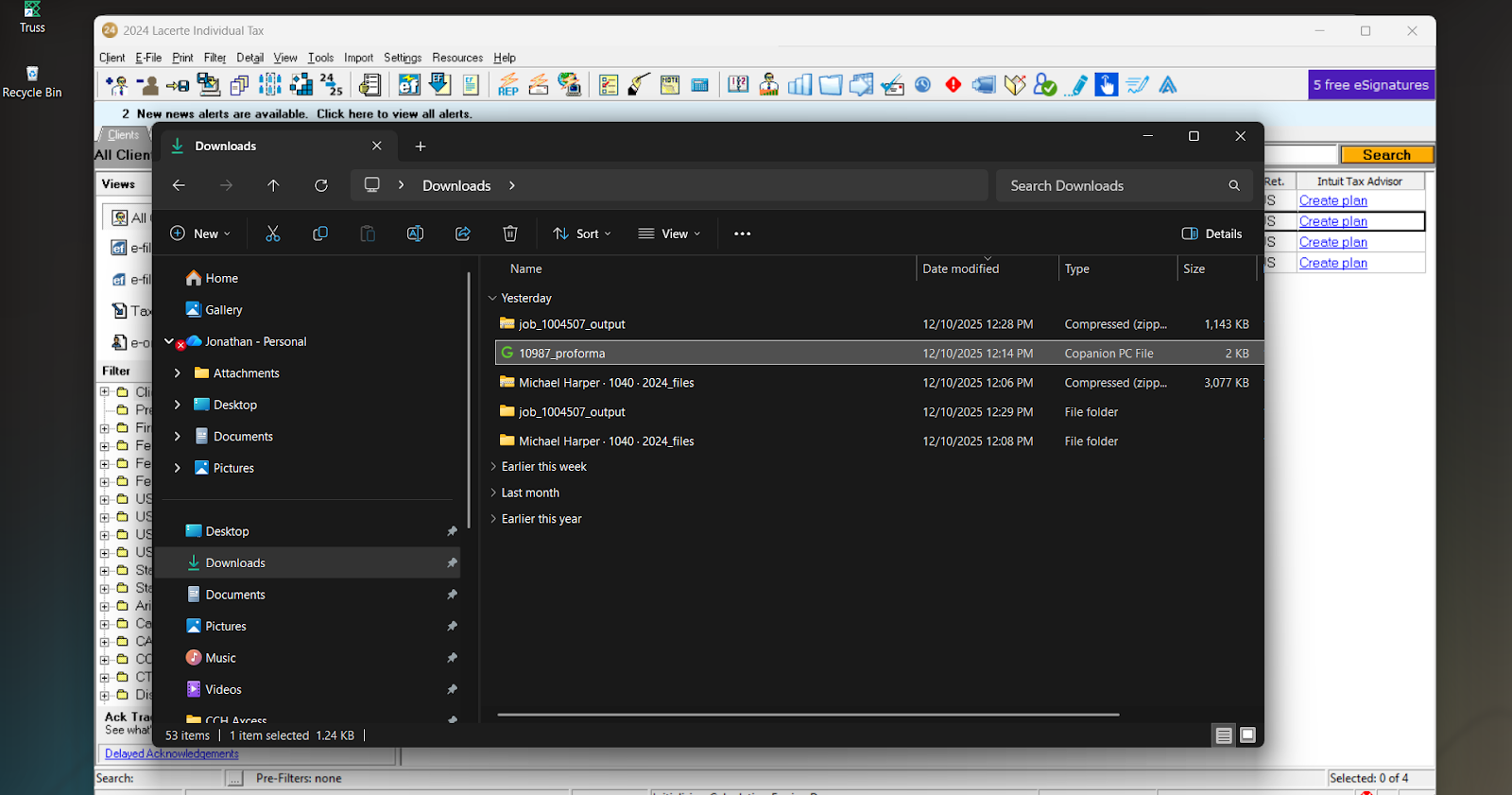
Step 2: Download Pro Forma
-
Click Download Pro Forma (gear icon or Truss Prep panel)

2. Save the file locally (defaults to Client ID as filename)
3. Open the Pro Forma file
Step 3: Submit to Truss Prep (OCR)
-
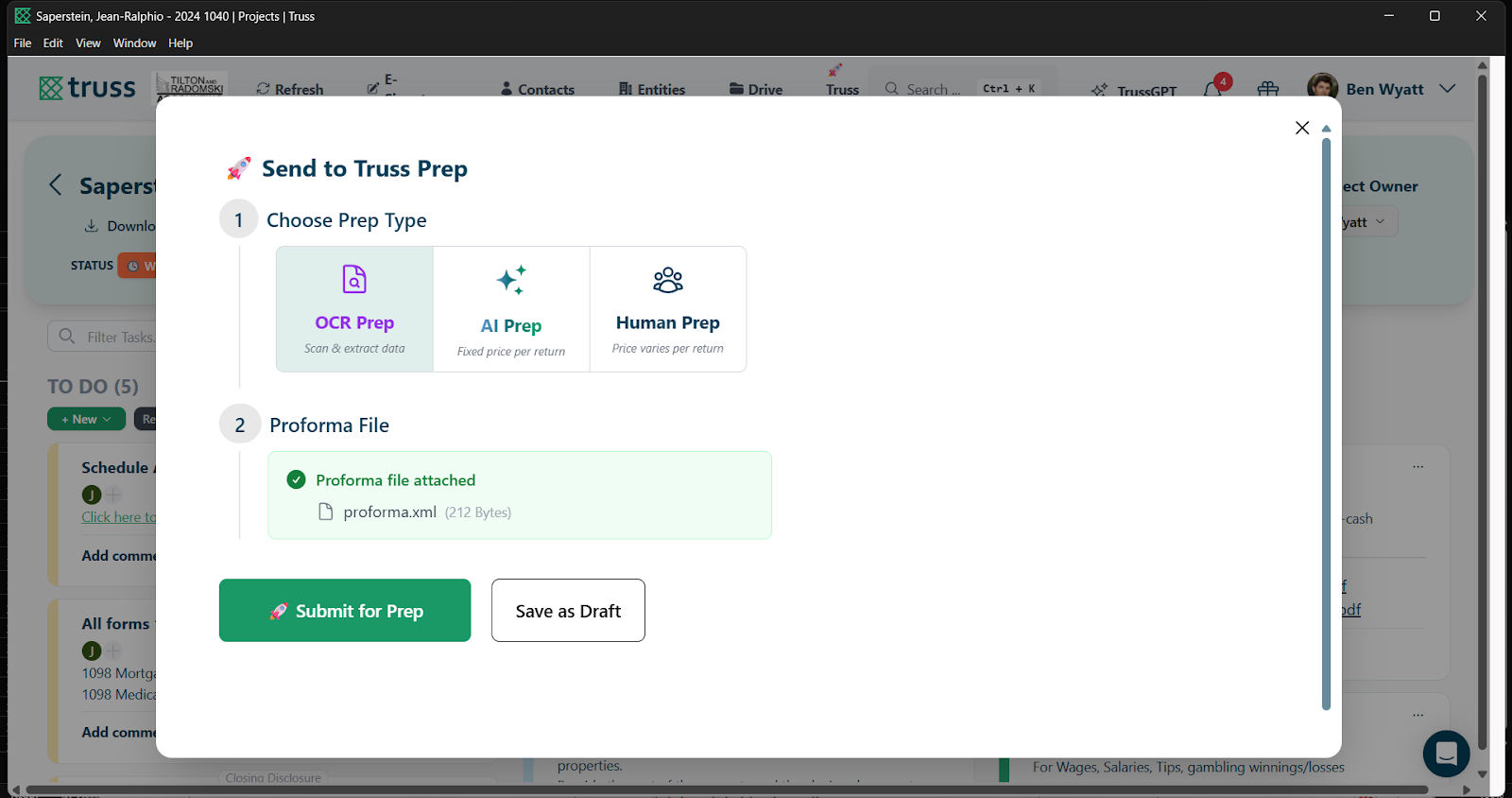
In the project, select Send to Truss Prep
-
Choose OCR
-
Confirm:
-
Pro Forma file is attached
-
Supporting documents (W-2s, 1099s, scans) are included
-
-
Submit
Behind the scenes:
-
Truss sends files to GruntWorx
-
GruntWorx OCRs and prepares an Excel output for Lacerte
Step 4: Monitor Status
-
View status in the Truss Prep Requests panel:
-
Ready status indicates the file is ready for download
-
View status in the Truss Prep Requests panel:
-
Ready status indicates the file is ready for download
Ready status indicates the file is ready for download
⚠️ If a job remains stuck in Processing, contact support.
Step 5: Download Processed Output
Once complete:
-
In the Truss Prep Requests dashboard click Download
-
Right click and extract the ZIP file
-
Save the file locally or save to the Populate folder created by the Agent: Local Disk (C:) > Users > (username) > Documents > GruntWorx > populate.
You will receive:
-
Pointsheet Excel file
-
Bookmarked PDF
Step 6: Windows & Excel Security (Required)
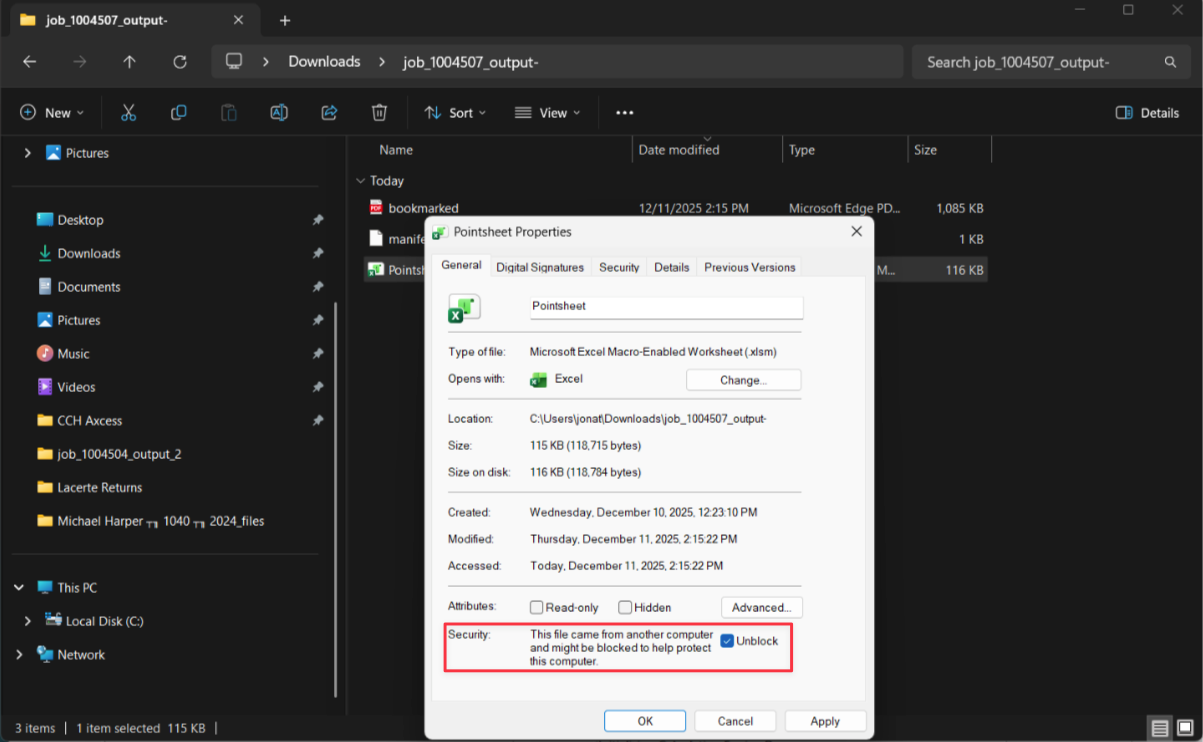
The Excel file contains macros and must be unblocked.
Unblock in Windows
-
Right-click the Excel file
-
Select Properties
-
Check Unblock
-
Click Apply → OK
Enable in Excel
-
Open the file
-
Click Enable Editing
-
Click Enable Content
Step 7: Review & Populate Data
-
Review the diagnostics/summary tab in Excel
-
Resolve any fields marked with X
-
Any field with an 'X' will not populate into the tax return
-
-
Ensure:
-
Lacerte is open
-
Correct client is selected
-
-
Click Populate
-
GruntWorx will write data into the Lacerte tax return for that client ID.
-
-
Verify populated data in Lacerte (W-2s, 1099s, etc.)
-
In Lacerte, open relevant input screens to confirm data has been populated
-
✅ Congratulations on using Truss Prep OCR!