
1. Log in to Drake and open the client
1. Log in to Drake.

2. Select the client > select "Tools" > "Maintenance" > "Backup"

3. Note the location you're saving the file to > select "Backup"

2. Upload the client file to Truss
1. The client file should appear like this.

2. Upload to Truss.
How-To: 🚀 Truss Prep - Watch Video
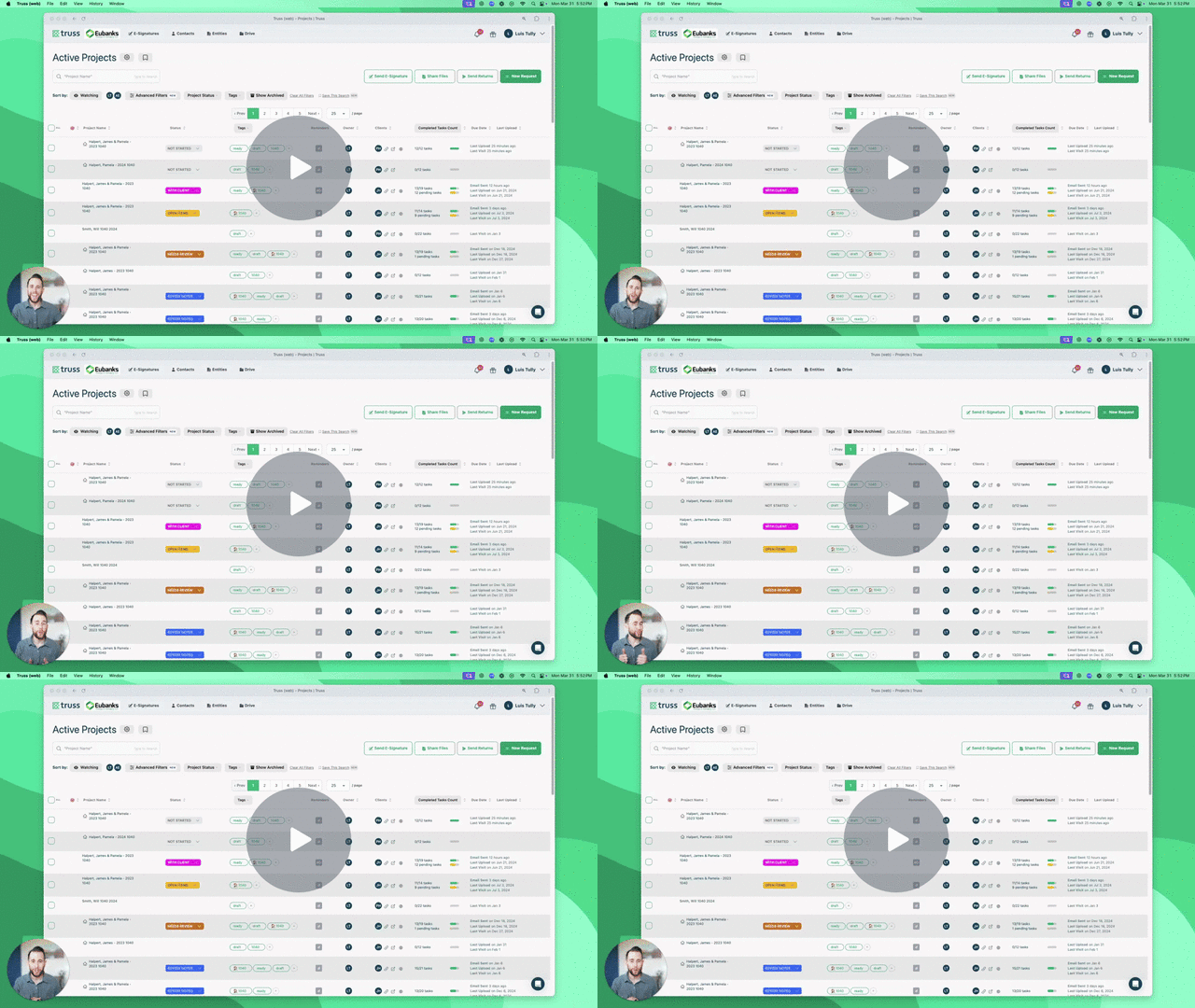
How to Access Your Completed Returns
Accessing Your Completed Returns
1. In Truss, go to the "Review" screen > select "View Ticket"

2. Under the "Truss Produced File" column, select the Return.

3. In Drake, go to "Tools" > "File Maintenance" > "Restore"

4. Find your client's directory > "Select Folder" (if no data shows in the folder, that's normal)

5. Select "Preview" to find the client > "Restore" > "Yes"
