
Accessing the Client
1. Log in to ProSeries.
2. Select "File" > "Client File Maintenance" > "Copy / Backup".

3. Set the Target Directory (location where you'd like client backup file to download to) > select "Backup client(s)"


Upload the .22E file to Truss
1. The client file should appear like this in its folder:

2. Upload here.
How to Access Completed Returns
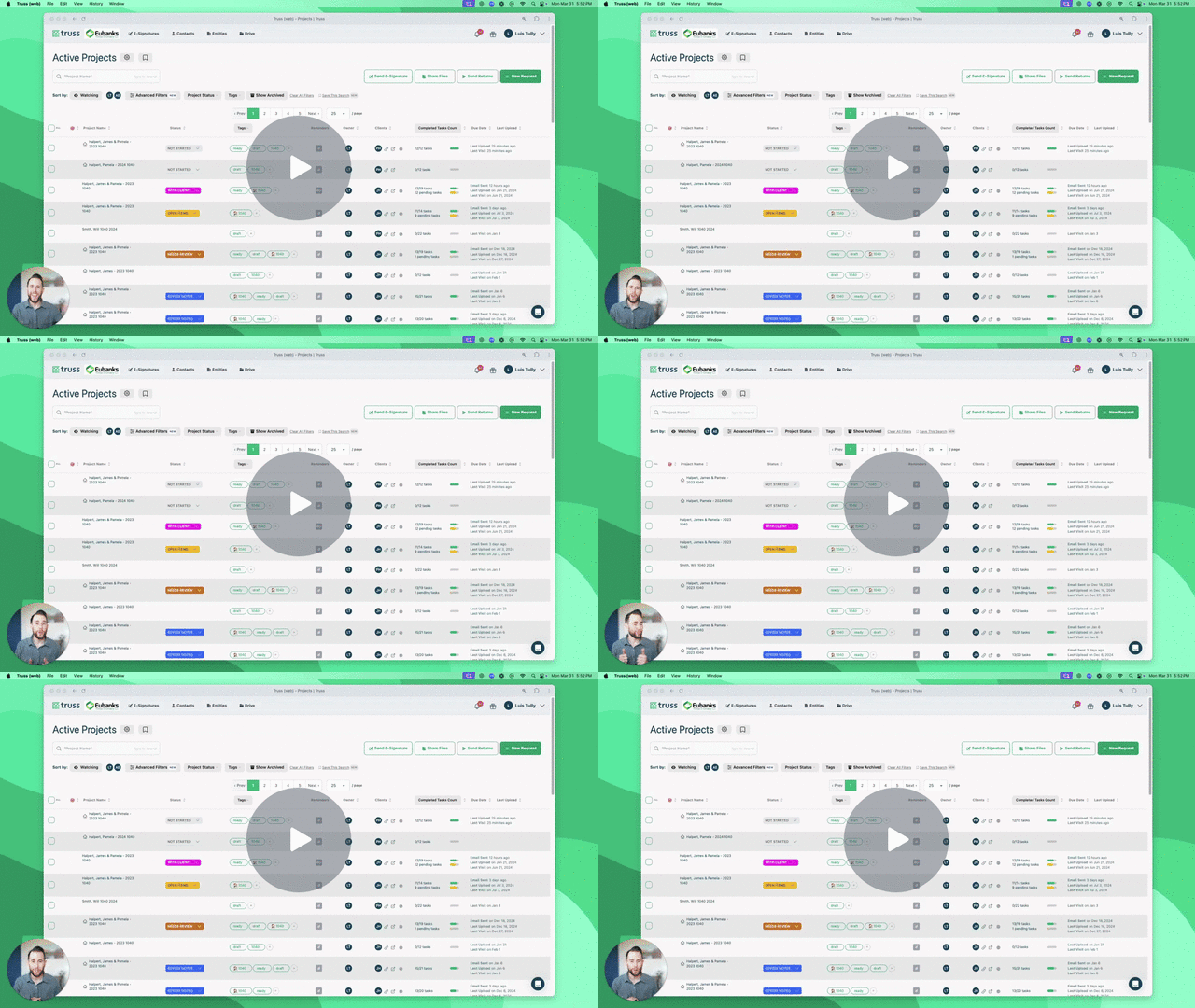
1. In Truss, go to the "Review" screen > select "View Ticket".

2. Under the "Truss Produced File" column, select the Return.

3. Open the file in ProSeries.


4. Overwrite the existing client data.
