🌐 Accessing the Upload Page
If the firm has upload links on a webpage or included them in their signature, you can click on the link to open the upload page. It will typically have some verbiage similar to 'Click here to send me files securely'.
⚠️ Caution: Always verify the link! Our webpage for upload begins with https://app2.gettruss.io.
1. Click on the link to open the upload webpage.

2. Review the logo and name on the link.
3. Enter your email address.
4. Click Next. If prompted, you will receive a code to your email to verify that it is a valid email address.

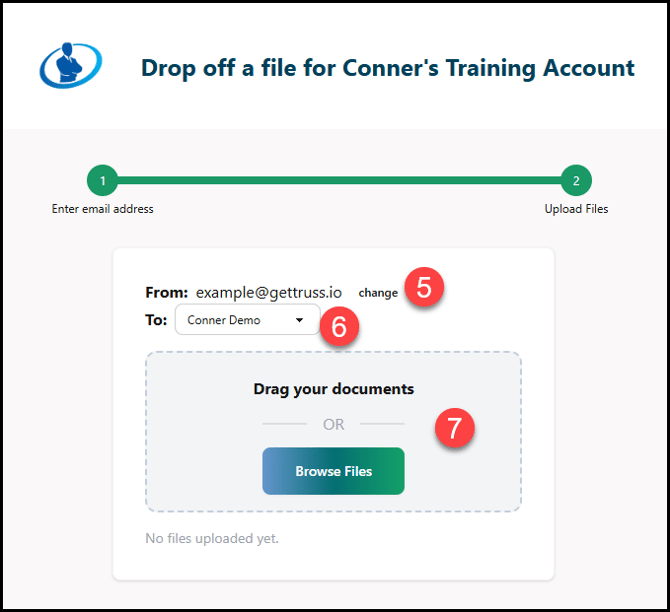
5. Click change if you need to update your email address.
6. Click the drop-down to update the recipient of the file(s).
7. Drag and drop or click Browse Files to add files to the upload.
Note: Files are uploaded immediately. Double-check the files before beginning the upload process.