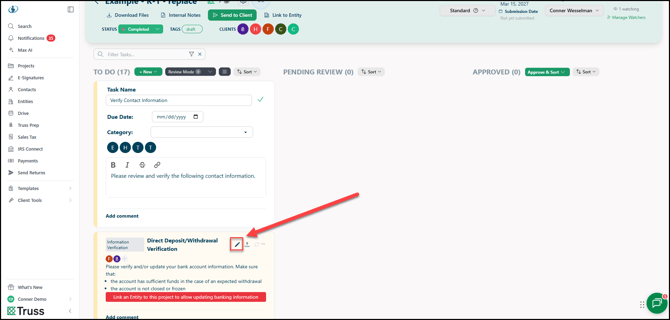
To edit a Task, just hover over the card until the options appear at the top. All you need to do then is click the Edit pencil!
✏️ General Editing
Most Tasks will include the following when you edit them:
- Task Name
- Due Date
- You can leave this blank or enter a specific date.
- Category
- This allows you to apply a Document Category, useful for when you generate Workpapers or use Drive Autosort.
- Contacts
- This is for display only, you cannot edit the Contacts from here.
- Description/Instructions
- You can use basic text formatting here, including Bold, Italics, Strikethrough, and Hyperlinks.
- If you use square brackets [ ] followed by a space and then text (i.e. [] I agree to the terms) it will create a checkbox on the description that both the firm and client can fill in.
- Comments

Editing Refund/Payments
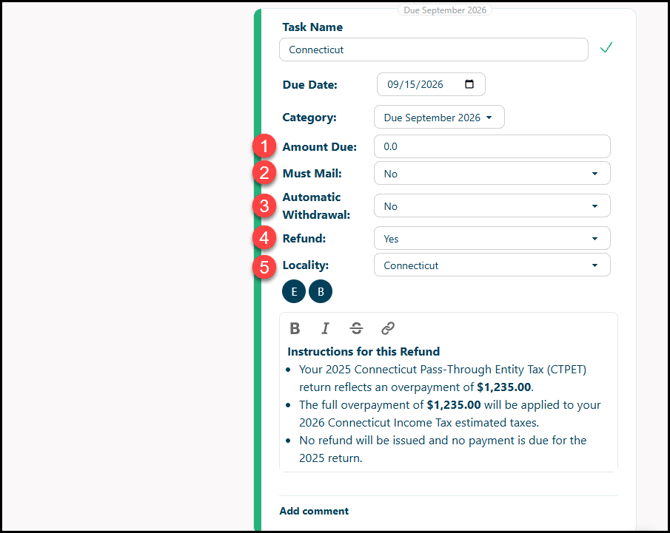
On top of the prior items, when a refund or payment is set in a Task, you can edit the following items:
- Amount Due
- Must Mail - Whether the amount has to be mailed or not (Yes/No)
- Automatic Withdrawal - (Yes/No)
- Refund - (Yes/No)
- Locality - Select the authority of the amount from the dropdown.